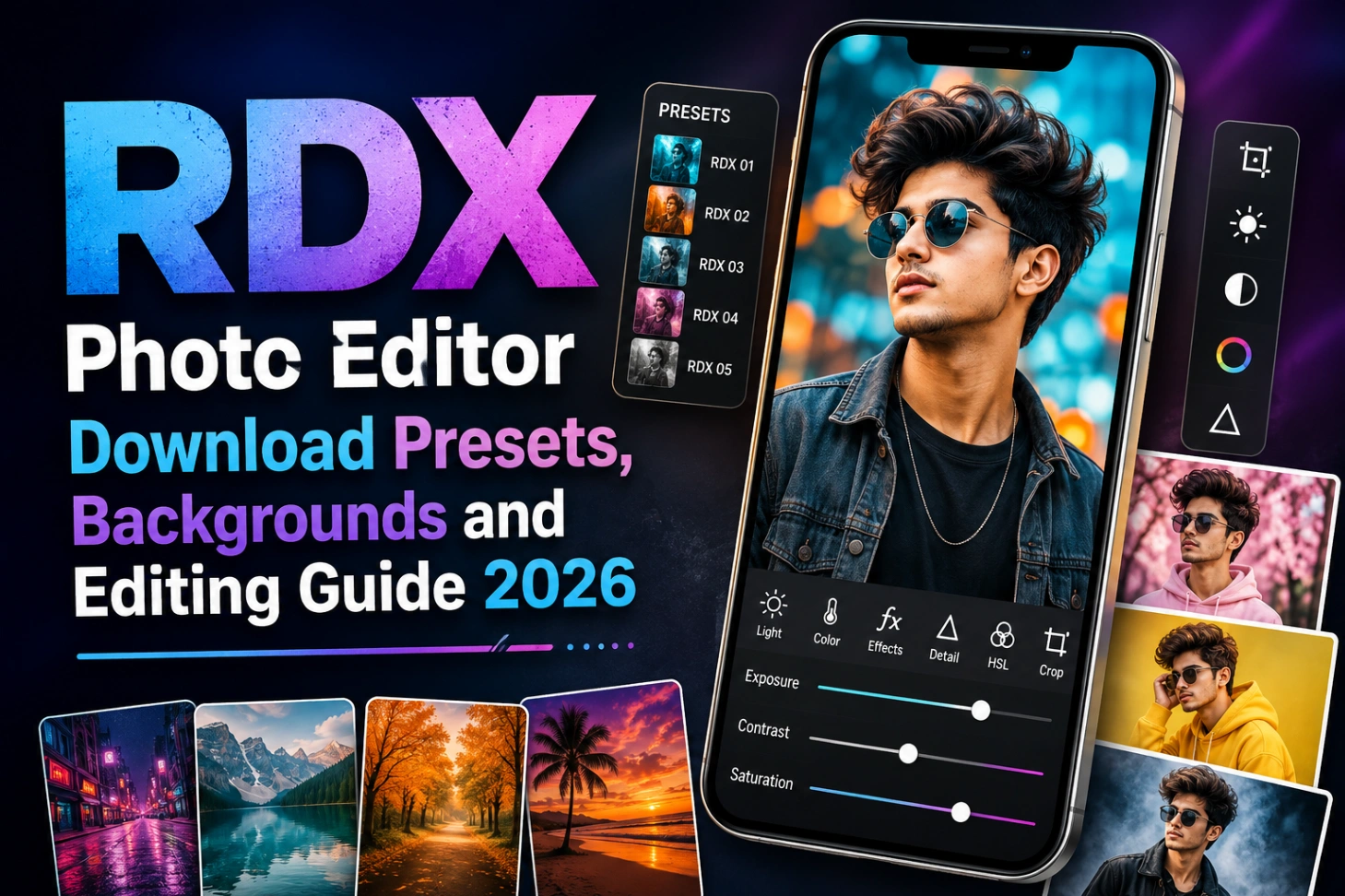
RDX Photo Editor Download: Presets, Backgrounds, PNG Pack

Type rdx photo editor download into Google and you will get a confusing mix of apps, preset files, background packs and tutorial pages. This page sorts that out. The download below is the RDX editing pack most people are actually looking for: Lightroom DNG presets in the RDX style, the HD backgrounds used behind portraits, and the PNG materials that finish the look. Along with the files, you get a clear guide on what each piece does, how to install the preset in Lightroom Mobile, and how to edit a portrait the RDX way without making the face look plastic. Everything here is free, and the rdx photo editor app style setup takes under five minutes.

What the download contains: DNG preset files for Lightroom, a set of HD portrait backgrounds, and PNG overlays like smoke and light effects. Check the format of each file before you use it: DNG carries preset settings, JPG files are backgrounds, PNG files are transparent materials, and ZIP is simply the pack that holds them together.
RDX Is a Style, Not One Single App
The RDX name comes from a popular Indian editor whose portrait style went viral on YouTube and Instagram: sharp faces, rich colours, smooth clean backgrounds and balanced light. Over time, “RDX editor” became the label for that whole look, and dozens of sites now share presets and resources under the name. So there is no single official RDX application behind most downloads. What you are downloading here is the working material of the style, and that is the safer route too. A preset or background file cannot ask for strange phone permissions the way an unknown APK can.
Getting the DNG Preset Into Lightroom Mobile
- Download the pack and extract it if the presets arrive inside a ZIP.
- Open Lightroom Mobile and import the DNG file like a normal photo.
- Open that DNG, tap the three dots, and choose Copy Settings.
- Go back, open your own portrait, tap the three dots, and choose Paste Settings.
- Review the face and background, then adjust exposure, shadows, temperature and saturation to suit your photo.
The copy and paste route is why DNG presets are so popular with mobile editors. Once a DNG is in your library, it works like a reusable one tap grade, no desktop needed. Editors who shoot regional styles often keep a small library ready; the Nagpuri Lightroom presets sit well next to RDX in such a library for vibrant traditional tones.
Start With a Photo That Can Carry the Look
No preset rescues a bad base photo. Pick a clear, well lit portrait where the face, hair and outfit are fully visible. Outdoor shots against roads, walls, trees and open fields grade far more easily than crowded indoor frames. Soft daylight is your friend: morning, cloudy weather and late afternoon light all respond well, while harsh noon sun creates shadows that fight the preset. Avoid blurry screenshots and photos that already carry someone else’s heavy filter.
The Edit Order That Keeps Faces Natural
Crop and straighten first, keeping breathing room around the head, hands and footwear. Correct brightness before the preset: drop strong highlights, lift only the shadows that hide real detail. Then apply the RDX preset and judge the colours honestly. If the skin turns orange, pull temperature down; if the background shouts louder than the face, reduce saturation. Finish with gentle sharpening and a little noise reduction. Heavy sharpening makes hair and skin edges look rough, which is the fastest way to make an RDX edit look cheap. For a cleaner, more formal portrait grade, compare the result with the Haryana DC Job presets, which keep tones neat and professional.
The Two Signature RDX Colour Directions
Most RDX style presets fall into two families, and picking the right family for your photo matters more than any single slider. The first is the cool blue direction: clean skin, deep blue and teal tones in the background, and a polished cinematic feel that suits bike shots, sunglasses portraits and city locations. The second is the dark high contrast direction, sometimes pushed all the way to black and white, where shadows go deep and the face carries the whole frame. That family suits attitude portraits and plain backgrounds. This pack leans on both, so try the blue grade on outdoor frames and the dark grade on close ups, and keep exposure correction separate for each family.
Backgrounds That Do Not Look Pasted
A replacement background fails for three reasons: wrong angle, wrong light, or missing shadow. Match all three and the edit holds together.
Roads and Bikes
Highways, bridges, petrol pumps and city roads give that bold attitude setting. The bike must match your pose in size and angle, and a soft shadow under the feet and wheels keeps everything grounded.
Green Outdoor Scenes
Forests, fields, gardens and village paths feel fresh with casual and traditional outfits. Keep the greens balanced; neon grass steals attention from the face. Wider scene collections like our Instagram trending aesthetic backgrounds are a good source when you need more options.
Dark City Nights
Dark walls, night roads and blurred street lights create the cinematic mood used in close up attitude portraits. Keep the face clearly lit and add a soft rim of light on the shoulders so the subject separates from the black.
Rail Lines and Village Roads
Tracks and country roads pull the viewer’s eye straight to the subject, which is why they suit full body edits. Feet placement and shadow direction decide whether it looks real, so take an extra minute there.
PNG Overlays: Less Is More
Smoke, birds, hair strands and light flares are finishing touches, not the main event. One or two elements per photo is plenty. Match the sharpness of the PNG to the scene, and place light effects near a believable source instead of across the face. If you prefer a moodier base grade before adding overlays, the CB editing preset for Lightroom gives portraits a darker cinematic start.
Download Only What Is Safe
- Take RDX files only from known editing sites, and check the file name, format and size before opening anything.
- If you only need a preset or background, you never need to install an APK.
- Scan ZIP files from new sources, and always keep your original photo saved separately as a backup.
- Keep one folder for tested files only. New downloads go in a separate folder until you have opened and used them once, so a bad file never mixes with the presets and backgrounds you already trust.
RDX Download Questions
The file I downloaded opens as a photo, not a preset. Did I get the wrong file?
No, that is exactly how a DNG preset looks. It is a photo that carries editing settings inside it. Import it into Lightroom, copy its settings, and paste them onto your own portrait.
Can I grade in Lightroom and then change the background in PicsArt?
Yes, that is a common RDX workflow. Do the colour grade and skin work in Lightroom first, export the photo, then replace the background and add PNG materials in PicsArt. Editing in this order keeps the colours consistent.
My skin turned orange after pasting the settings. Which control fixes it?
Start with the Temp slider and pull it slightly towards blue. If only the face is affected, lower Orange saturation in the colour mixer. Also check that your original photo was not shot under strong yellow light.
Should I install an RDX app from the Play Store or a random site?
Be careful. Many unrelated apps use the RDX name, and modified APKs from random sites are a real risk. The preset, background and PNG route in this pack gives you the same look inside Lightroom and PicsArt, which are the apps actually worth installing. For more preset styles in the same family, the Imran Editz presets are worth a look too.

